
Steps to Set Up Microsoft Teams:
- Download & Install: Visit the official Microsoft Teams download page to install the app on Windows, Mac, or mobile.
- Sign In: Open the app and log in using your Microsoft 365 business, enterprise, or personal account.
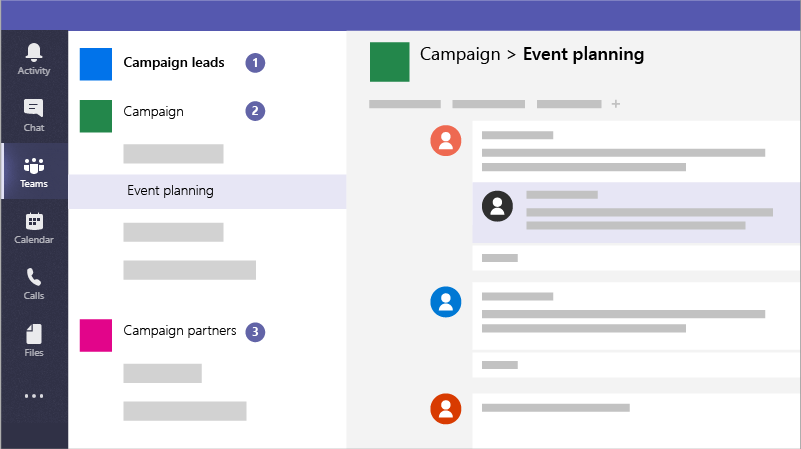
- Create a Team:
- Click Teams on the left pane, then select Join or create a team.
- Click Create team and choose to build from scratch or a template.
- Select the privacy level: Private (invited users only) or Public (anyone in your organization).
- Name your team and add a description.
- Add Members: Add people by typing their names or email addresses. You can add guests from outside your organization.
- Create Channels: Within the team, create channels to organize topics, projects, or departments.
- Configure Settings: Access settings via the “…” menu to customize notifications, appearance (light/dark mode), and chat settings.
Key Tips:
- Use the Search Box: Quickly find specific people, messages, or files.
- Manage Chats: Use the Chat tab for one-on-one or small group, private conversations.
- Stay Updated: Check the Activity feed to catch up on @mentions, replies, and notifications.
- Meetings: Start meetings directly from a chat, channel, or calendar.
Last updated on March 9, 2026